Set up your computer
This page needs a recent browser (with SharedArrayBuffer support). Please update Chrome, Edge, Firefox or Safari to the latest version.
You don't need to install anything
- In this course, SQL runs right here in your browser — there's nothing to set up.
- This lesson is optional: read it only if you want SQL on your own computer.
- It takes about 10 minutes, and you only do it once.
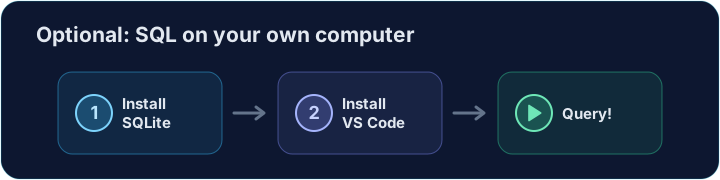
Step 1 — Install SQLite
- SQLite is a tiny, free database — perfect for learning.
- Get the
sqlite3command-line tool from sqlite.org/download.html. - Prefer clicking to typing? Install DB Browser for SQLite from sqlitebrowser.org — a free visual tool.

Step 2 — Install VS Code
- VS Code (Visual Studio Code) is a free, popular code editor from Microsoft.
- Get it from code.visualstudio.com and install it.
- This is where you'll write and run your SQL.

Step 3 — Add a SQLite extension
- Open VS Code and click the Extensions icon on the left.
- Search for SQLite and click Install on a popular one.
- It lets you open a database file and run queries right inside the editor.
Step 4 — Check it worked
- Open a terminal (in VS Code: Terminal → New Terminal) and type:
sqlite3 --version
- You should see a version like
3.45.0. If you do, you're ready.
Step 5 — Run your first query
- Start SQLite on a new database file with
sqlite3 test.db, then type:
SELECT 'Hello from my own computer!';
- Press Enter and SQLite prints your text back.
- You just ran SQL outside the browser.